22 Oct
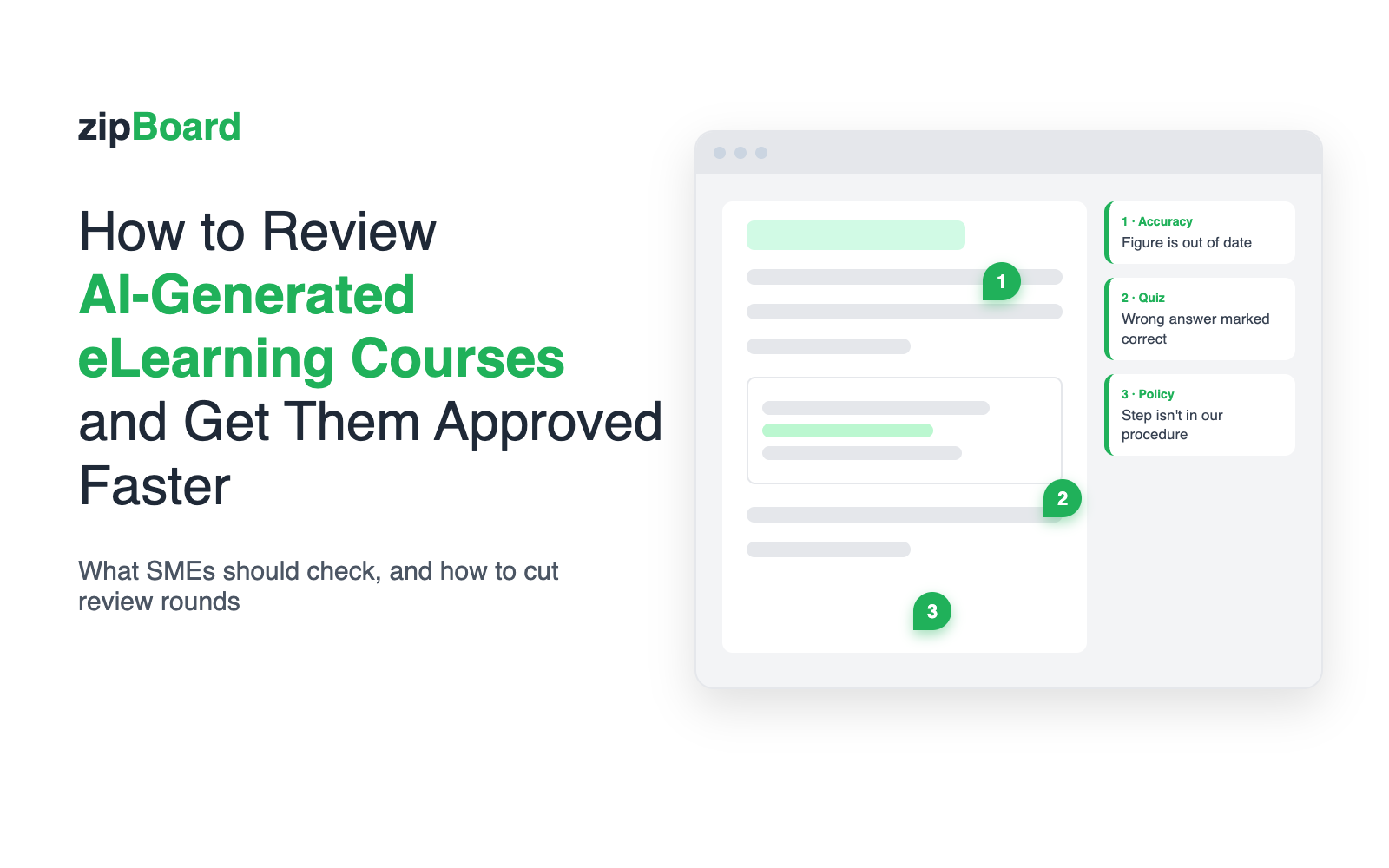
Short answer: Teams review and approve eLearning courses faster when every reviewer comments on the course itself (not in email or a spreadsheet), each comment lands on the exact screen with an owner, the SMEs who must sign off are named with a due date, and the next version is checked against the last one instead of re-reviewed from scratch. For AI-generated courses, add one more step: ask SMEs to check facts, policy, invented details and quiz answers, because AI drafts read confidently even when they’re wrong.
Why do AI-generated courses need a different review?
AI course builders can turn a PDF, a slide deck or a prompt into a draft course in minutes. Production stops being the slow part. Review becomes the slow part, and the risk moves with it.
What L&D teams tell us they worry about:
- “It sounds right, but is it?” Numbers, dates, regulations and references that are out of date or simply made up.
- “That’s not how we do it here.” Steps that don’t match your real procedure or policy.
- “Which quiz answer is actually correct?” Marked answers that are wrong, or distractors that are also right.
- “What did it leave out?” Something critical from the source document that never made it into the course.
None of this shows up in a spell-check. It takes a subject-matter expert looking at the screen the learner will see.
What should SMEs check in an AI-generated course?
Give reviewers a short, specific brief. These six checks catch most AI errors (and if your SMEs are new to reviewing, our guide to working with SMEs and clients covers how to brief them):
| Check | What to ask the SME |
|---|---|
| Facts and figures | Are numbers, dates, names and references correct and current? |
| Policy and compliance | Does it match our actual procedures, regulations and terminology? |
| Invented details | Are there examples, quotes, sources or steps that aren’t in our source material? |
| Quiz questions | Is the marked answer right, and are the wrong answers really wrong? |
| Gaps | Did the AI leave out anything critical from the source document? |
| Tone and audience | Is the reading level right, and is anything off-brand? |
Try it: review this AI-drafted course
A short SCORM course built for this demo, with three AI mistakes an SME caught: an out-of-date figure, a wrong quiz answer and an invented step. Open it, click through the screens, read the SME comments or add your own. No sign-up.
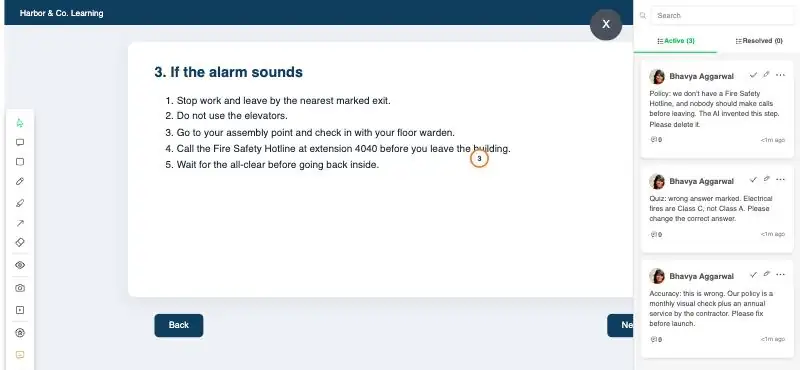
Opens in a new tab. Use Next in the course to move between screens and the speech-bubble icon at the top right for the comments. Sample course; content is fictional. It’s a shared demo, so you may see comments from other visitors.
Tip: tag each comment with a type (Accuracy, Compliance, Missing content, Editorial) so you can see at a glance what must be fixed before launch and what can wait.
For a full pre-launch list (navigation, media, accessibility, SCORM behaviour), use our eLearning quality assurance checklist, or the shorter course QA checklist in the help center.
How do teams review and approve eLearning courses faster?
Most delays come from the process around the course, not the course itself: feedback scattered across email threads and screenshots, comments nobody can place (“which slide? which layer?”), SMEs who reply late or not at all, and a second round that starts from zero. Five habits fix most of it.
1. Review the exported course, whatever built it
Review the thing learners will get: the SCORM or HTML package, the hosted course, or the video. That works the same whether the course came from Rise, Storyline, an AI builder such as Coursebox or Mindsmith, or your own developers. AI video tools such as Synthesia export MP4, which you review the same way (how to review AI avatar videos). Your review process doesn’t have to change every time your authoring stack does. (Most AI builders export SCORM or HTML; this help article lists which export to use from each.)
2. Comment on the screen, not about it
A comment pinned to the exact screen, with that screen captured alongside it, removes the “which slide did you mean?” round trip. Your developer fixes it the first time. Building in Rise? Here is how to get SME feedback on a Rise course.

3. Name the people who must sign off, and give them a date
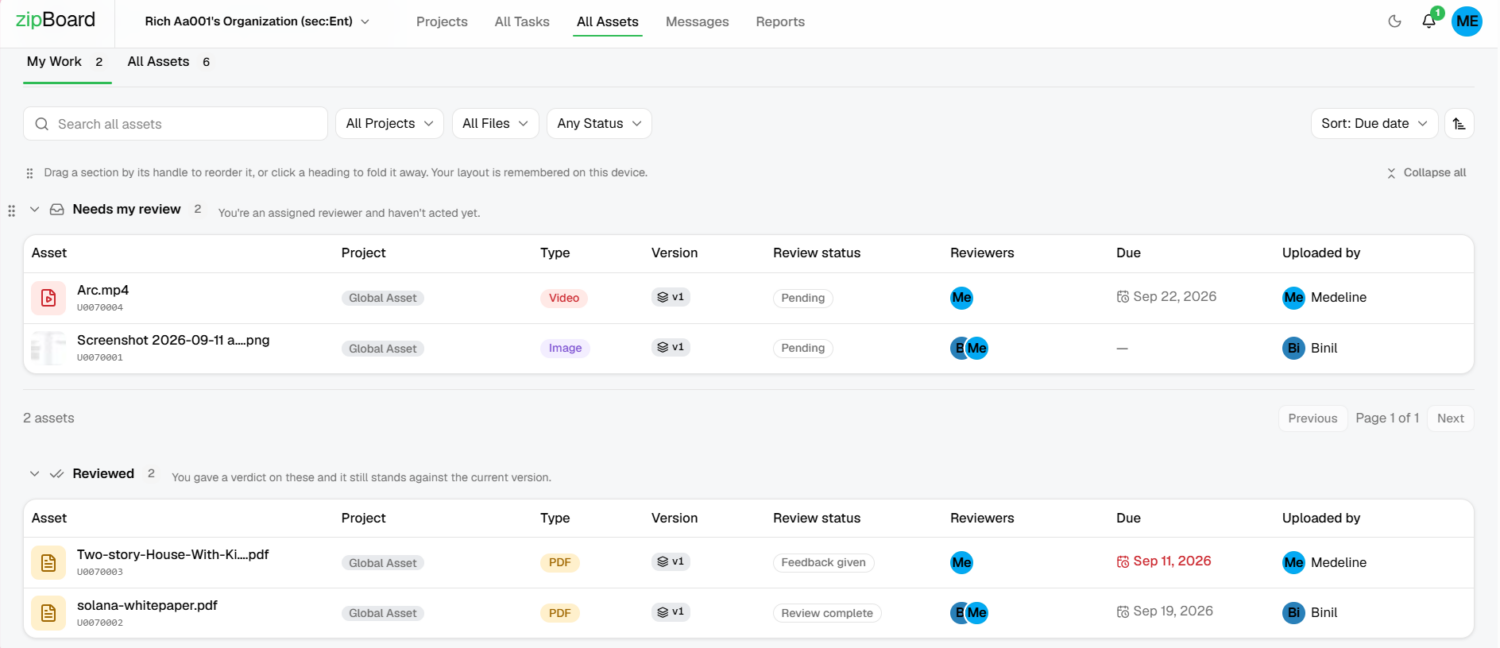
“Who still hasn’t signed off?” should take seconds to answer. Name the SMEs whose approval is required, set a due date, and let everyone else comment through a share link without creating an account.
4. Turn comments into tracked fixes
Each comment should have an owner and a status, so “how do we know the review is done?” has a real answer: every comment is resolved, and every required reviewer has approved. If you run many courses at once, the same idea scales: see how to track content approvals across multiple projects.
5. Check the new version against the old one
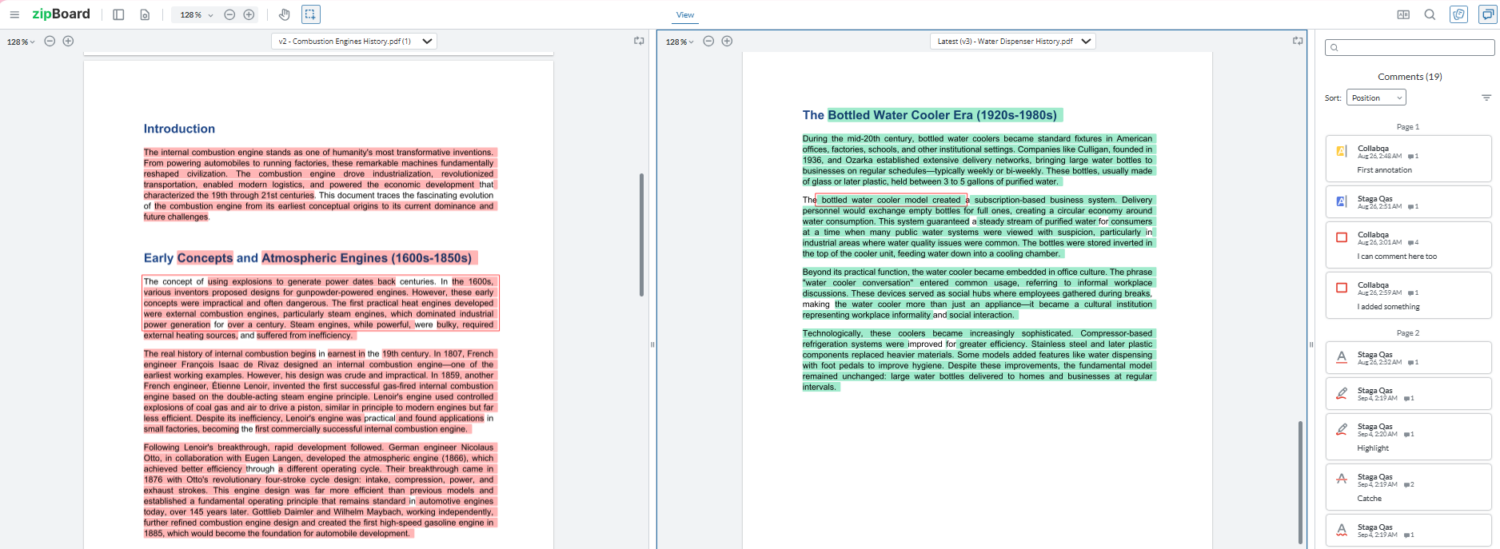
When the corrected course comes back, upload it as a new version of the same course. Earlier approvals reset, so a sign-off on the first draft never counts for the corrected one. Reviewers then confirm their own comments were fixed by looking at the two versions side by side, not by re-reviewing the whole course. That’s what turns three or four rounds into one or two. (How to compare two SCORM course versions side by side.)
Can you review an AI-generated course without an LMS?
Yes. Upload the SCORM or HTML ZIP (or add the course URL) to a review tool and share it with reviewers. Nobody needs an LMS login, and the course doesn’t go near your live LMS until it’s approved. See how to review a SCORM course without an LMS.
One practical note: some AI builders offer “dynamic” SCORM, a small wrapper that loads the course from the vendor’s servers. For review, export a static (self-contained) SCORM or HTML package so the reviewer sees the whole course.
What about Articulate Review 360?
If your courses are built in Articulate 360, Review 360 is a sensible place to start (new to the suite? see our Articulate 360 overview). Here is what it’s built for and where teams go further. Review 360 facts below come from Articulate’s own support pages, linked in the table.
| Articulate Review 360 | zipBoard | |
|---|---|---|
| What you can review | Content published from Articulate 360 apps, manually uploaded Storyline 360 courses, and uploaded videos (Articulate support, updated 16 Jan 2026) | SCORM and HTML packages from any tool (including AI builders), hosted course URLs, videos, PDFs, images and websites |
| Upload a SCORM package for review | Not on Articulate’s list of sources: content is published from Articulate 360 apps, Storyline 360 courses are uploaded manually, and videos are uploaded (Articulate support) | Yes: upload the SCORM or HTML ZIP from any authoring or AI tool and review it in the browser, no LMS needed (how it works) |
| Reviewers without an account | Yes, if the owner allows it; reviewers enter an email to comment (Articulate user guide) | Yes, through share links; required reviewers are added by name |
| Versions | New versions keep the same link, and comments stay visible across versions (Articulate user guide) | New versions in the same course, approvals reset on each new version, plus side-by-side compare of two versions |
| Exporting comments | CSV or PDF report of all comments (Articulate user guide) | Comments become tasks with owner, status, type and due date, tracked to closure |
| Sign-off | Comments are resolved by the content owner | Named required reviewers, due dates and a “Needs my review” list for each SME |
When Review 360 is enough: every course is authored in Articulate 360, your reviewers are happy commenting there, and you track fixes from the comment list or an export.
When teams add a review tool: part of the pipeline now sits outside Articulate (an AI builder, custom HTML5, a vendor’s SCORM), you need to know who still has to approve, or you’re exporting comments to a spreadsheet just to track fixes. More on this on the eLearning review tool page.
When a dedicated review tool isn’t worth it
Be honest about scale. If you ship a handful of courses a year, have one or two reviewers, and everything lives in a single authoring tool, a shared checklist plus your authoring tool’s built-in review is often enough. A dedicated tool starts paying off when review rounds, reviewers and course sources multiply, which is exactly what AI production tends to do.
FAQ
How do you review an AI-generated eLearning course?
Export the course as SCORM, HTML or video, put it in front of your SMEs on the screens learners will see, and ask them to check facts, policy, invented details, quiz answers, gaps and tone. Track each comment to a fix, then compare the corrected version against the original.
How do teams review and approve eLearning courses faster?
Keep all feedback on the course itself, pin each comment to the exact screen, name the reviewers who must sign off and give them a due date, track every comment to resolution, and check new versions side by side instead of re-reviewing from scratch.
Can SMEs review a course without an LMS or an account?
Yes. With a review tool such as zipBoard you upload the SCORM or HTML package (or add the course URL) and share a link. Reviewers comment in the browser without an LMS login or a zipBoard account.
Is Articulate Review 360 enough for AI-generated courses?
If the AI content was created inside Articulate 360 (for example with AI Assistant in Rise or Storyline), you can publish it to Review 360 like any other Articulate course. Articulate’s support article lists Articulate 360 apps, manually uploaded Storyline 360 courses and videos as the sources; a SCORM package from another AI builder isn’t on that list.
What are the most common errors in AI-generated training content?
Out-of-date or invented facts and references, steps that don’t match your actual procedure, wrong quiz answers, missing content from the source material, and an off-brand tone. These are accuracy problems, so they need a subject-matter expert, not just an editor.
How many review rounds should an eLearning course have?
Most teams aim for two: a full SME and stakeholder review, then a check that each fix landed. The second round is short when reviewers compare the new version with the old one instead of starting again.
Does zipBoard review AI-generated courses with AI?
zipBoard’s AI content-quality reviewer is in private beta with a small group of teams, so it isn’t part of the standard product today. What’s available now: AI-suggested task types and auto-tagging for comments. People stay in charge of what’s correct.
Get your next AI-built course signed off
Upload the course, invite your SMEs, and see every correction on the exact screen.
Free resource: Collaborating with SMEs and clients during course development: checklist
Related reading: Beyond the Spreadsheet: The Complete E-Learning Review and Approval Process · The 5 Best SCORM Review Tools for 2026 · Compare two SCORM course versions side by side