29 Oct
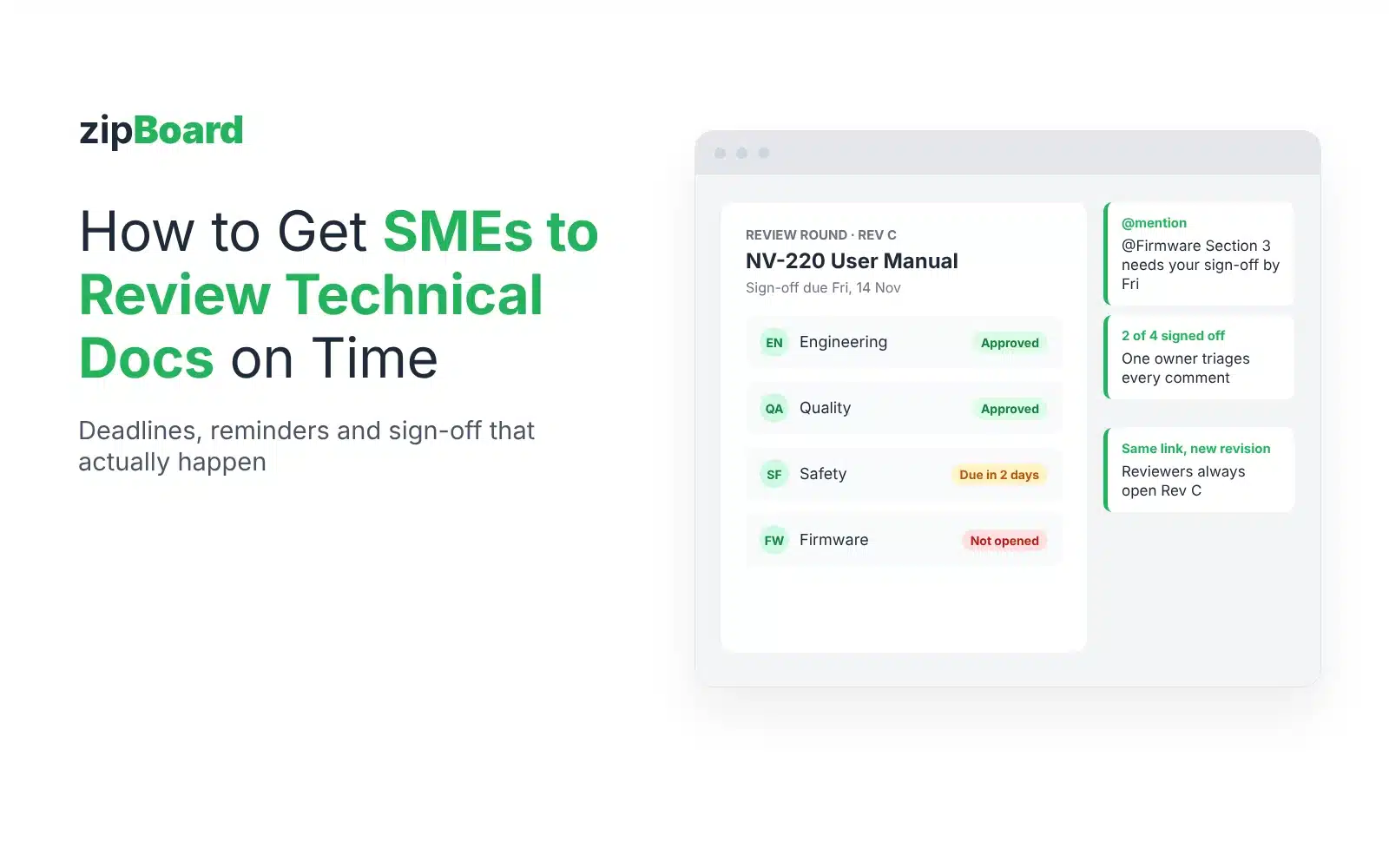
The draft was finished two weeks ago, and the datasheet still can’t ship. One engineer hasn’t opened it, and nobody is sure which revision the other two approved.
No credit card needed. Reviewers are always free.
The short answer: SMEs review on time when the ask is small, the file is easy to open, and everyone can see who is still outstanding. Send each SME a specific question with a due date, give them the rendered PDF through a link (not access to your authoring tools), make them a named, required reviewer, nudge only the people who haven’t finished, and record each decision against a specific revision so a new revision means a new sign-off.
Why do SMEs miss review deadlines?
Rarely because they don’t care. Review is unplanned work on top of an engineer’s real job, and most requests make it easy to put off:
- The ask is vague. “Can you take a look at the manual?” has no end. “Check the electrical specs in section 4 against Rev C of the schematic by Thursday” does.
- The file is hard to open. SMEs don’t have a CCMS or FrameMaker seat, Acrobat asks them to sign in again, or the shared review server is down.
- They’re not sure which version to read. Two attachments, a wiki link and a “latest” folder all claim to be current.
- Nobody can see who is holding things up. The writer chases everyone, so the one person who is actually late doesn’t feel it.
- Silence gets treated as approval. If “no reply” counts as “fine”, there’s no reason to reply.
Most of these are fixed before the review starts, not by chasing harder afterwards. For the full process (scope, reconciliation, the accuracy record), see our complete guide to SME review.
What should an SME review request include?
Put everything the SME needs to say yes in the request itself:
- The document and the revision: “NV-220 User Manual, Rev C”.
- What’s in scope: the sections or tables only this person can check, and what to skip (wording, layout).
- The question: “Are the values in table 4-2 correct for production firmware?”
- The decision you need back: approved, or changes requested.
- The due date, and why it matters (release, regulatory submission, translation hand-off).
- Who else is reviewing, so two experts don’t fix the same thing in different ways.
- How to comment: one link that opens in the browser.
Put the date, the document and the revision in the subject line. Busy reviewers triage by subject, and many filter review-tool notifications out of their inbox entirely. “You’ve been invited to review” gets missed; “Review needed by Thu 12 Nov: NV-220 Rev C, section 4” doesn’t.
A request you can copy:
Subject: Review needed by Thu 12 Nov: NV-220 manual Rev C, section 4 (electrical specs)

Hi Priya,

Could you check section 4 (electrical specifications, tables 4-1 and 4-2) of the NV-220 User Manual, Rev C, against production firmware?

What I need back by Thu 12 Nov: Approved, or Changes requested with comments on the lines that are wrong. Please skip wording and layout; the editor has those.

Marco is reviewing the safety section and Lena the installation steps, so you only need section 4.

Open it here (no install, comments go straight on the page): [link]

This date keeps translation on schedule for the 1 Dec release.

Thanks,
Sam
How much time should SMEs get?
Work back from the release date, not forward from today. Leave time after the due date to reconcile comments, fix the document and run a short second round, then set the SME date before that. Tell SMEs the date when the draft is still a week or two away, so it lands in their planning instead of their inbox. If one person always runs late, give them a smaller scope rather than a longer deadline.
How do you run SME review on a 500-page manual with 25 reviewers?
Large documentation teams often send one product manual to 25 or 30 reviewers, and nobody reads 500 pages. What works at that size:
- Split the review into groups, each with its own date. Peer review, engineering accuracy, safety or regulatory review, and literature or editorial review are different jobs with different owners. Run them as separate rounds or groups instead of one long list of names.
- Give each reviewer their sections. “Chapters 3 and 7, plus the warnings in appendix B” gets read; “the manual” doesn’t.
- Let reviewers land, comment and leave. Nothing to install, no new account for every review, no troubleshooting. Every setup step you ask of 25 people costs you a day of chasing.
- One owner triages every comment. Someone on the documentation team accepts, rejects or defers each one and replies on the comment, so the reviewer can see what happened and the record is complete at release.
- Keep the same reviewers across revisions. The people who reviewed Rev B usually review Rev C, D and E. Send each new revision to the same list and ask them to check their own comments first.
How do you remind SMEs without nagging?
Agree the reminder plan when you send the request, then follow it without apologising:
| When | Who you contact | What you send |
|---|---|---|
| At request | Every SME | The request above, with the date and the one question. |
| A day or two before the due date | Only the SMEs who haven’t finished | One line: “Section 4 is due Thursday; here’s the link.” |
| Due date passed | Only the SMEs who are outstanding | A comment on the exact section that needs them, mentioning them by name, plus who has already signed off. |
| Agreed escalation point | The SME’s lead (named up front) | What is blocked, which section, and the release date at risk. |
Two habits make this work. Never “reply all” to remind one person, and always show who has already finished: being the last one outstanding is a stronger nudge than a third email.
It also helps to know who hasn’t opened the document at all and who opened it but hasn’t said anything. The first needs the link again; the second usually needs a direct question about their section.
What counts as SME sign-off?
A sign-off you can rely on at release, or in an audit, has three parts: who decided, what they decided (approved or changes requested), and which revision they decided on, with a date. A thumbs-up in chat or “looks fine” in an email thread has none of the three in a form you can find later.
Two rules keep sign-off honest:
- Silence is not approval. A required reviewer who hasn’t decided is still outstanding.
- A new revision needs new sign-off. Approval of Rev B doesn’t cover Rev C, even if “only the tables changed”.
What happens when a new revision goes out mid-review?
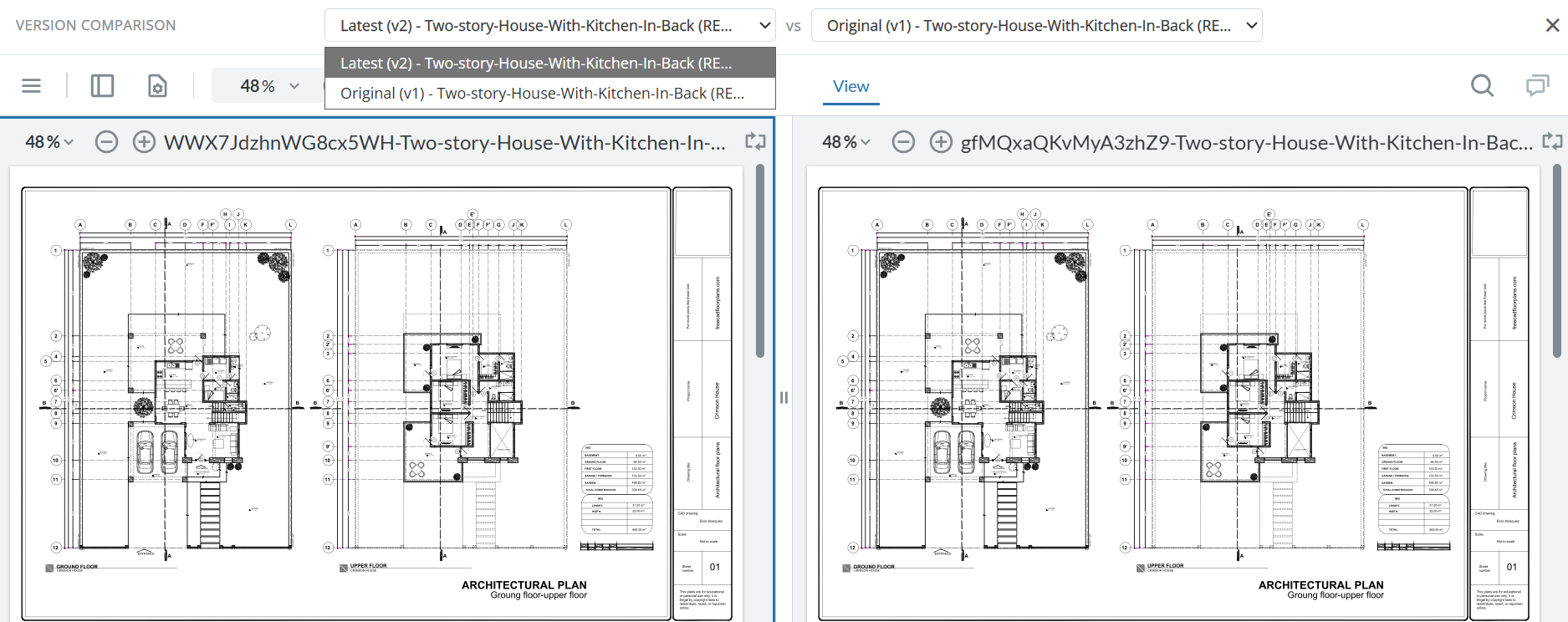
Close the round on the old revision, send the new one, and reset every decision. Then give SMEs a quick way to answer the question they actually have, “did my comment get fixed?”, by comparing the two revisions side by side instead of rereading the whole document. Our guide to comparing two PDF versions covers how to check fixes without missing changes.
And make sure the review link always opens the revision under review. “Which version am I supposed to be reviewing?” is the question that sends SMEs back to an old attachment.
Email, Acrobat shared review or a review tool: what changes?
| Email + attachments | Adobe Acrobat “Share for review” | zipBoard | |
|---|---|---|---|
| How SMEs open it | Download the attachment | Email link; invited recipients sign in to comment. A public link skips sign-in, but Adobe says it isn’t for sensitive information | In the browser; assigned reviewers sign in, share-link reviewers can comment on PDFs without signing up |
| Due date | Written in the email | “Add deadline” when sharing | Due date per file; overdue files show red, due within 7 days amber |
| Who still hasn’t signed off? | Your own spreadsheet | Status of the shared file in “Shared by you” | Each required reviewer’s decision on the file, and the file stays in their “Needs my review” list until they finish |
| Reminders | You write them | You write them | You nudge from the file (an @mention emails that person); the owner gets an email each time a reviewer changes status |
| New revision | New thread | Share the new file | New version of the same file; reviewer decisions reset; side-by-side compare with changed text highlighted |
| Record of sign-off | Inbox search | Comments in the PDF | Decisions per reviewer and version, plus a comment export |
Acrobat details from Adobe Help, Share PDFs for review (last updated 1 Apr 2026). zipBoard details from our help articles on required reviewers, due date colours and reviewer statuses.
If your shared reviews already run in Acrobat and keep breaking, start with what breaks in Adobe shared review and how to fix it.
Try it: comment on a sample manual
This is a live zipBoard review of a fictional product manual. Click a pinned comment, or add your own on a spec table.
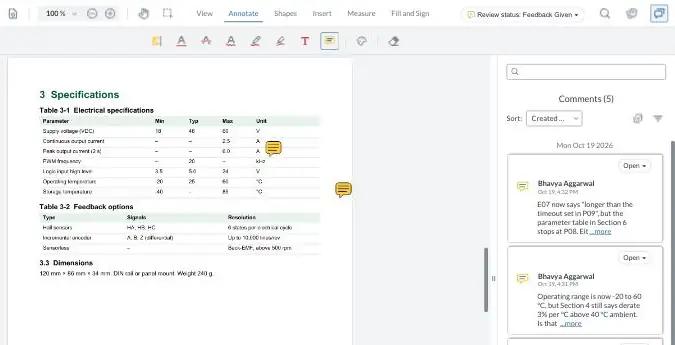
Your demo comments are private to this visit.
How does this work in zipBoard?
Documentation teams at hardware and semiconductor companies use zipBoard for the review step that sits between authoring and release:
- SMEs review the PDF you already publish, from FrameMaker, a DITA pipeline or docs-as-code, in the browser. No CCMS seat, no Acrobat, no plugin.
- Required reviewers. Add the people whose sign-off you need; they get an email and the file waits in their “Needs my review” list until they finish.
- Decisions, not just comments. Each reviewer records Approved, Changes Requested, Feedback Given or Review Complete, and you see who is still outstanding.
- Due dates you can see. Overdue files turn red across all your projects, so the late ones stand out.
- See who hasn’t looked yet. Each required reviewer shows when the file was sent to them and when they last opened it, next to their decision.
- Long PDFs, your servers. Review manuals and datasheets in the hundreds of pages, and add PDFs by URL so the files stay on your own servers instead of being uploaded (how it works).
- Comments on the exact line or figure, and any comment can become a task with an owner.
- New revision, new sign-off. Upload the next version and every decision resets. SMEs compare the two side by side, with the text that changed highlighted, to check their fixes (see what text changed).
- Locked-down links. Make a share link require sign-in, or protect it with a password, and set it to expire.
- Reviewers are unlimited on every plan, so adding another engineer doesn’t add a seat. See plans
More on the page built for this job: technical document review software for SME sign-off.
Image compare: see what changed in figures, diagrams and pinouts between revisions, not just the text.
Get notifiedAI review for technical documents is in private beta: a first pass that flags inconsistencies before the draft reaches your SMEs. Ask us about joining.
Ask about early accessWhen don’t you need a review tool for this?
- One SME, one short document. Comments in the PDF or tracked changes are enough.
- Every SME already works in your CCMS’s review module and is happy there. A second tool adds a step.
- You need comments written back into your DITA or XML source automatically. zipBoard reviews the rendered output and exports comments; it doesn’t edit your source.
- Your existing PDF comments need to come with you. Comments already embedded in a PDF don’t turn into zipBoard comments; see moving existing PDF comments.
Frequently asked questions
How do I get SMEs to review documentation on time?
Make the request small and specific (which sections, what question, what decision), give a due date worked back from the release, send a link they can open in the browser, name them as a required reviewer, and remind only the people still outstanding while showing who has already finished.
Should I send SMEs the source files or the PDF?
Usually the rendered PDF. SMEs check facts, not markup, and the PDF is what customers will read. It also means they don’t need a seat in your authoring tool or CCMS.
How do I remind an SME that their review is overdue?
Remind only the people still outstanding, on the exact section that needs them, and show who has already signed off. In zipBoard, overdue files show red and an @mention on a comment emails that person. Agree an escalation contact before the review starts.
Does a new revision need a new sign-off?
Yes. Approval applies to the revision the SME read. In zipBoard, uploading a new version resets every reviewer’s decision and returns the file to their “Needs my review” list.
Do SMEs need a zipBoard account?
Required reviewers sign in, so their decision is tied to their name. Anyone else can comment on a PDF through a share link without signing up. Reviewers are unlimited on every plan.
What’s the difference between SME review and approval?
SME review checks that the content is technically correct; approval authorises release. They often have different owners. The technical document review workflow shows where each sits.
How do you run SME review on a large manual with many reviewers?
Split it into review groups (peer, engineering, safety or regulatory, editorial), give each reviewer their sections and a date, let one owner triage every comment, and keep the same reviewers across revisions.
Can our PDFs stay on our own servers?
Yes. In zipBoard you can add a PDF by URL instead of uploading it, so the file stays on your server and reviewers comment on it in the browser.
Can we password-protect review links?
Yes. A zipBoard share link can require reviewers to sign in, or be protected with a password, and you can set it to expire.
Can I export SME comments for a comment resolution record?
Yes. zipBoard exports review comments as a comment resolution sheet; see exporting review comments for the options on each plan.
Get your next datasheet signed off on time
Send one link, see who is still outstanding, and keep sign-off tied to the revision that ships.
No credit card needed. Reviewers are always free.
Related: SME review: a complete guide · Technical document review workflow · Compare documents side by side · Help: running technical documentation reviews with many SMEs