26 Oct
Updated October 2026
When an Acrobat shared review suddenly stops working, it’s almost always the legacy shared review: the PDF you sent with “Send for shared commenting” to a network folder, SharePoint site or WebDAV server. It usually breaks in one of three places: the PDF opens in a browser (often Edge) instead of Acrobat, Acrobat loses its sign-in to SharePoint after an Edge or Windows update, or a new Acrobat version changes how the legacy review behaves.
Adobe now describes this workflow as “legacy” and “not the recommended review method”, so the fixes below get you through this round. The last section covers what to do if it keeps happening.
Which kind of Adobe review are you using?
Check this first, because the fixes are different.
| Legacy shared review | Cloud “Share” link (current Acrobat) | |
|---|---|---|
| How you started it | Send for comments › Send for shared commenting | Share button in the top bar |
| Where comments are kept | A network folder, SharePoint subsite or WebDAV folder you host | Adobe’s cloud storage |
| How reviewers comment | In Acrobat or Acrobat Reader on their desktop; comments sync with the server | In a browser, from a link (Adobe says without signing in) |
| Typical failures | Missing review toolbar, “cannot connect to the review server”, comments not syncing | Link settings, access, sign-in prompts |
| Adobe’s position | Legacy, “not the recommended review method” | Recommended |
To use the legacy review at all in current Acrobat, Adobe says you have to switch off Share for review using Adobe’s cloud storage in Preferences › Reviewing. Most teams that still use it do so because their review files have to stay inside the firewall.
Why does shared review stop working in Edge?
Because the review only works inside Acrobat on the desktop, and Edge opens the PDF in its own browser viewer.
A legacy shared review is kept in sync by the desktop app: Adobe’s help says Acrobat “synchronizes published comments on your local hard drive with the comments on the server”. When a reviewer clicks the PDF link in Outlook or SharePoint and it opens in an Edge tab, there’s no review toolbar, no Check for new comments and no Publish comments, and anything they add stays in that copy.
Fixes that work:
- Open it in the desktop app. For a review link, Adobe’s steps are to open the link, then choose Options › Open in desktop app. For a file on SharePoint or a network share, open it from Acrobat (or download it and open with Acrobat), not in the browser.
- Make Acrobat the default PDF app on reviewers’ machines, so links stop opening in Edge. In managed environments, IT sets this centrally.
- Rejoin from the Tracker. If a reviewer has already been in the review, Adobe’s help says to open View › Tracker and double-click the PDF to rejoin it.
Why did “Check for new comments” break after an Edge or Windows update?
When the review is on SharePoint, Acrobat has to sign in to it, and that sign-in goes stale. Teams in Adobe’s community forums report these errors after Edge or Windows updates:
- “Adobe Acrobat cannot connect to the Review Server”
- “Cannot get new comments. Login credentials are expired or invalid”
- “You do not have access rights to this server”
- A script error as soon as they click Check for new comments
- The Check for new comments and Publish comments buttons disappearing
Fixes people report (try them in order; none of them is an official root-cause fix):
- Restart the sync process. An Adobe staff member suggested quitting Acrobat, restarting the Acrobat Collaboration Synchronizer process in Task Manager, and re-adding the SharePoint site under Add file storage.
- Clear stale sign-ins. Close all Adobe apps, delete the Adobe entries in Windows Credential Manager, clear Edge’s browsing data and saved credentials, then reopen the review PDF. This is the fix the original poster marked as working.
- Repair Edge. One user reported that repairing Microsoft Edge from Programs and Features fixed it every time it came back after an Edge update.
- Reinstall Acrobat and reboot. Another user said this brought the review back.
If it comes back after every Edge update, you’re not doing anything wrong: you’re maintaining a sign-in chain between Acrobat, Windows, Edge and SharePoint on every reviewer’s machine.
Why did shared review break after an Acrobat update?
Two common reasons.
1. The new Acrobat sends reviews to the cloud by default. If Send for shared commenting has disappeared, or reviews are going to Adobe’s cloud instead of your server, check that Share for review using Adobe’s cloud storage is switched off in Preferences › Reviewing. Adobe’s own steps start there.
2. A release changed how the legacy review behaves. This has happened before:
- In May 2016, an Acrobat DC update stopped shared reviews on network folders (“Unable to create shared folder”). Adobe released a patch a couple of weeks later.
- In August 2026, a team integrating with shared review over WebDAV reported that after updating to Reader 2026.001.21771 the shared review toolbar no longer appeared and the review registration failed. At the time of writing, the thread has no fix from Adobe.
What to do: run Help › Check for updates (a patch may already be out), and if a whole team is affected, ask IT whether to hold or roll back that Acrobat version. Report it in Adobe’s community or to support with the version number, so it’s tracked.
Quick checklist before the next review round
- Every reviewer opens the review in Acrobat or Acrobat Reader on the desktop, not in Edge or another browser.
- “Share for review using Adobe’s cloud storage” is off for whoever starts the review.
- Everyone has read and write access to the network folder, SharePoint library or web server folder.
- Reviewers can reach the server from where they work (VPN, firewall).
- Acrobat is on the same, current version for everyone, and you know who to call if an update breaks it.
- Someone checks that each reviewer’s comments actually arrived before the round closes.
For other server errors (crashes, “could not save the shared review-enabled PDF file”, WebDAV setup), see our help guide Troubleshooting Adobe Acrobat shared review.
Why does Adobe shared review keep breaking?
Because every reviewer’s computer is part of the system. A legacy shared review depends on:
- Acrobat’s version on each machine,
- Windows and Edge, which Acrobat leans on to sign in to SharePoint,
- your network folder or SharePoint permissions,
- and comments syncing between each desktop and the server.
Any one of them can change without warning, and the review owner usually finds out when someone asks “did we just lose someone’s comments?” or “why can’t I see Legal’s markups?”. Large documentation teams then build workarounds around the tool: backup copies of comment files, a sign-off spreadsheet, a person who chases reviewers by email.
Adobe’s direction is clear too: the recommended path is now the cloud Share link, and the server-hosted review is kept for organizations that need it.
Should you switch to Adobe’s cloud “Share” review instead?
For many teams, yes. It removes the server, reviewers comment in a browser from a link, and you get notified in Acrobat when comments come in.
It may not fit if:
- The PDFs can’t sit in Adobe’s cloud storage. That’s often the reason teams are on the server-hosted review in the first place.
- You need to know who still hasn’t signed off, by reviewer and by revision, rather than collecting comments.
- Your documents go through several revisions, and reviewers need to check whether their comments were fixed in the next one.
What does an Adobe review cost, beyond the licence?
The licence is the cost you can see. Most of the cost of a review sits in people’s time: setting it up, chasing reviewers, merging comments and, with the server-hosted review, keeping it working.
| Cost | Adobe cloud Share link | Legacy shared review (your server) |
|---|---|---|
| Licences | Whoever starts reviews needs a paid Acrobat plan (Adobe lists “Share a PDF link for reviews” in Acrobat Standard and Pro). Reviewers comment in the browser for free. | Whoever starts reviews needs Acrobat. Reviewers can use free Acrobat Reader: commenting rights are switched on automatically in a managed review. |
| Comparing revisions | “Compare versions of a PDF” is in Acrobat Pro, not Standard, so everyone who compares needs Pro. | Same. |
| Server and access | Adobe’s cloud storage. | A network folder, SharePoint library or WebDAV server, read and write access for every reviewer, and VPN or external access for people outside the company. |
| IT time | Low: access and link settings. | Acrobat versions on every machine, sign-in fixes after Edge or Windows updates, tickets every review round. |
| Review owner’s time | Collecting decisions and chasing reviewers. | The same, plus checking each reviewer’s comments actually synced. |
Prices vary by region and plan, so check Adobe’s plans page for yours. To add up licences, team time and IT upkeep for your own team, use the calculator in the real cost of Adobe Acrobat for documentation teams.
When is it time to move reviews to the browser?
When the review tool itself has become a job. Signs we hear from documentation teams:
- Every Acrobat or Edge update means a round of IT tickets.
- Someone spends the last day of each review checking that comments synced.
- External SMEs can’t get into the SharePoint site or the VPN.
- Sign-off is tracked in a spreadsheet next to the PDF.
What does zipBoard add to the review round?
zipBoard is a browser-based review tool that sits on top of the PDF you already publish, from FrameMaker, Arbortext, DITA or InDesign. Keep Acrobat for editing; move the review.
| What the review needs | Adobe Acrobat | zipBoard |
|---|---|---|
| Who still hasn’t signed off? | Senders can track views and activity on a shared link. | Each required reviewer records a decision (Approved, Changes Requested, Feedback Given, Review Complete) on the file, against a due date. |
| Turning comments into work | Reply, react, mark as resolved. | Any comment can become a task with an assignee and status. Tasks can sync to Jira. |
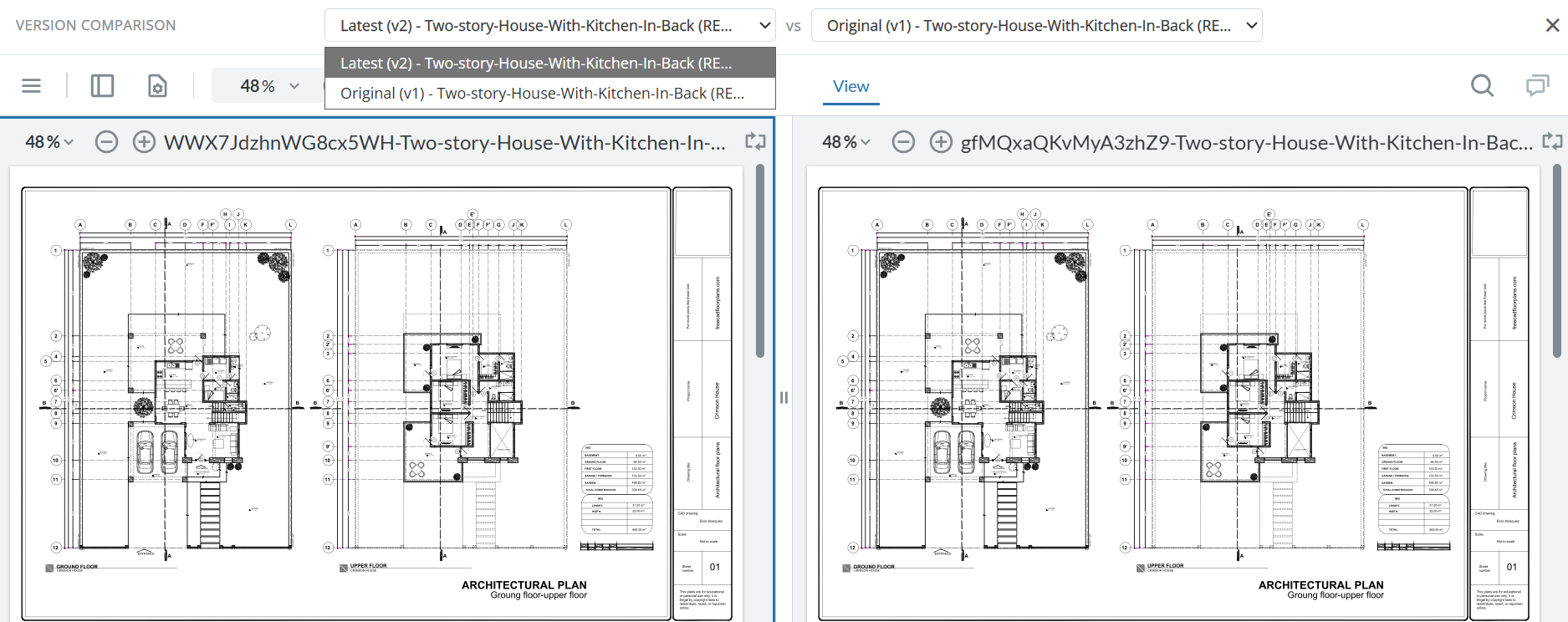
| What changed, and was my comment fixed? | Compare versions on the desktop, in Acrobat Pro. | Upload the next revision as a new version; anyone in the review compares the two side by side in the browser. Earlier comments stay with their version. |
| Reviewers outside the company | Cloud link: in the browser. Legacy review: desktop app plus access to your server. | A browser link. You choose whether it needs sign-in, and can add a password and an expiry date. |
| Where the files live | Adobe’s cloud, or your own server with the legacy review. | zipBoard, or add PDFs by URL so they stay on your own server. |
| Paying for reviewers | Reviewers comment free; anyone who compares versions needs Pro. | Reviewers are unlimited on every plan. |
| Other content | PDFs. | PDFs, drawings, websites, SCORM courses and video, in the same review. |
Sources for the Adobe column: Acrobat plans and Share links to PDFs (Adobe Help). How the zipBoard side works: what maps to what when you move from Acrobat shared review, and reviewing documents that stay on your servers.
See how documentation teams review in zipBoard
Try it: comment on a sample manual
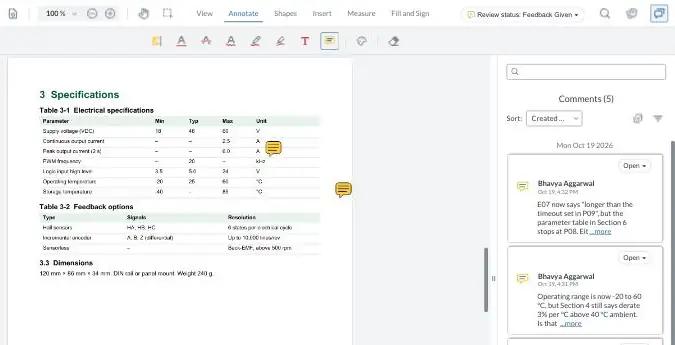
This is a fictional product manual, Rev B and Rev C, open in zipBoard. Highlight a line, pin a comment on a table, or compare the two revisions. No sign-up and nothing to install: it’s what your reviewers would see.
Your demo comments are private to this visit and clear when you leave the page. Open the manual full screen
When not to switch
- The review works and your team is happy in Acrobat. If updates rarely bite and reviewers are all inside your network, the fixes above are enough.
- Reviewers need Acrobat’s editing tools in the same session, for example to fix text in the PDF while reviewing.
- Your CCMS already runs review and every SME has a seat. Adding a second tool adds a step.
- You need to carry a large backlog of open Acrobat comments into the new tool. Comments already embedded in a PDF stay visible in zipBoard, but they don’t convert into zipBoard comments automatically; open items have to be re-created (how it works). Many teams switch at the start of the next revision instead.
Frequently asked questions
Why does Adobe shared review not work in Microsoft Edge?
A legacy shared review syncs comments through the Acrobat desktop app. When the PDF opens in Edge’s browser viewer, the review tools aren’t there and comments don’t sync. Open it in Acrobat or Acrobat Reader instead (Options › Open in desktop app for review links), and set Acrobat as the default PDF app.
Why is “Check for new comments” missing in Acrobat?
Usually because the PDF is open in a browser rather than in Acrobat, or because Acrobat lost its connection to the review server. If the server is SharePoint, restart the Acrobat Collaboration Synchronizer, clear Adobe entries in Windows Credential Manager, and reopen the PDF.
How do I fix “Adobe Acrobat cannot connect to the Review Server”?
Check that you can open the network folder or SharePoint library, then clear stale sign-ins: close Adobe apps, delete Adobe credentials in Windows Credential Manager, clear Edge’s browsing data, and reopen the review. Users also report repairing Edge or reinstalling Acrobat fixed it.
Did Adobe discontinue shared review?
Not entirely. Adobe still documents shared reviews on network folders, SharePoint and WebDAV servers, but calls it the legacy sharing experience and “not the recommended review method”. The recommended way is the cloud Share link.
How do I turn the legacy shared review back on in new Acrobat?
In Preferences › Reviewing, uncheck “Share for review using Adobe’s cloud storage”. Then use All tools › Send for comments › Send for shared commenting.
Can reviewers comment on a shared PDF without Acrobat?
With Adobe’s cloud Share link, yes: Adobe says recipients can comment in a browser without signing in. With the legacy server-hosted review, reviewers need Acrobat or Acrobat Reader on the desktop. Browser-based tools like zipBoard also let reviewers comment from a link, with no install.
How much does Adobe shared review cost?
Reviewers can comment for free: in the browser with a cloud Share link, or in free Acrobat Reader in a server-hosted review. Whoever starts reviews needs a paid Acrobat plan, and comparing versions needs Acrobat Pro. The larger cost is usually people’s time, plus server upkeep for the legacy review.
Can I bring my existing Acrobat comments into zipBoard?
They stay visible in the PDF’s own comment list when you upload it, but they don’t convert into zipBoard comments automatically. Re-create the open ones, or start in zipBoard with the next revision.
What’s the best alternative to Adobe shared review for large documents?
Look for a tool where comments are saved to one shared review rather than synced from each reviewer’s machine, that tracks each reviewer’s sign-off, and that compares revisions. zipBoard does this in the browser, and PDFs can stay on your own server.
Run your next review without the sync problems
Send the PDF from one link, see who still hasn’t signed off, and compare the next revision side by side.
Related reading
- Why IT teams are getting out of the PDF review server business
- The real cost of Adobe Acrobat for documentation teams
- Adobe PDF alternative for team review
- Technical document review software
- zipBoard vs. SharePoint for documentation review
- Moving from Acrobat shared review to zipBoard: what maps to what
- SME review: a complete guide