Measure Directly in Your Drawing Review: No More Switching Tools to Verify a Dimension
01 Aug
Table of Contents
ToggleMeasure Directly in Your Drawing Review: No More Switching Tools to Verify a Dimension
The zipBoard Measurement Tool lets architects, engineers, and construction managers calibrate PDF scales and verify dimensions directly inside their browser-based drawing review canvas. Instead of forcing reviewers to switch to external rulers, zipBoard keeps reference dimensions as lightweight, discussable annotations—keeping your active task board clean and focused on real work.
The Silent Bottleneck in Architectural Drawing Reviews
If you’ve ever reviewed a set of architectural plans or submittal drawings, this routine probably feels all too familiar:
You’re reviewing a digital drawing, and you need to verify a critical clearance—say, the width of a corridor or the headroom above a structural beam. But your review software only lets you drop sticky notes or draw rough boxes.
To verify the actual dimension, you have to:
- Download the PDF to your desktop.
- Launch a heavy CAD/BIM program or offline PDF editor.
- Calibrate the scale and take the measurement.
- Copy the number, switch back to your browser, and type it into a comment.
This constant tool-switching breaks your concentration, slows down turnaround times, and invites manual copy-paste errors. Even worse, some review platforms treat every single mark you make on a page as a “task.” Take ten quick measurements on a single floor plan, and suddenly your project manager is staring at ten new “open work items” that aren’t actually work items at all.
Here is why having direct, scale-calibrated measurement inside your browser-based review tool is a game-changer for AEC teams:
Eliminates the Software Tax
Historically, verifying a single clearance or spatial area meant opening a heavy desktop BIM/CAD application or offline PDF editor. For non-CAD users, like field superintendents, project managers, or external clients, this required expensive software licenses, complex software installations, or waiting hours for an architect to re-export a dimensioned sheet. Native browser measurement democratizes spatial checks: anyone with review access can instantly verify dimensions and measurements without specialized desktop software.
Cuts Review and Approval Cycles
When drawing reviews require toggling between web collaboration platforms, desktop viewers, and spreadsheets, review turnaround times stall. By bringing scale calibration, simplified measurement, and threaded discussions into a single cloud review canvas, AEC teams eliminate friction, speed up design coordination, and accelerate project start dates.
Prevents Expensive Field Rework & RFIs
In construction, a misread or unverified dimension leads directly to Requests for Information (RFIs), delayed change orders, or costly field rework during fabrication. Enabling team members to perform live verification checks directly against calibrated submittals ensures that spatial conflicts, like HVAC duct clearance or door swing radius errors, are caught and resolved during early design review rather than on the job site.
Introducing zipBoard Measurement Tool
Check out this quick 1-minute walkthrough to see how scale calibration and instant dimension checks work directly on the zipBoard review canvas:
Start Measuring Today
Check out how zipBoard measurement tools can streamline your team’s review workflow
Measure Directly in Your Drawing Review: How It Works
With zipBoard’s native Measurement Tool, checking dimensions on blueprints and shop drawings takes seconds—right inside your web browser.
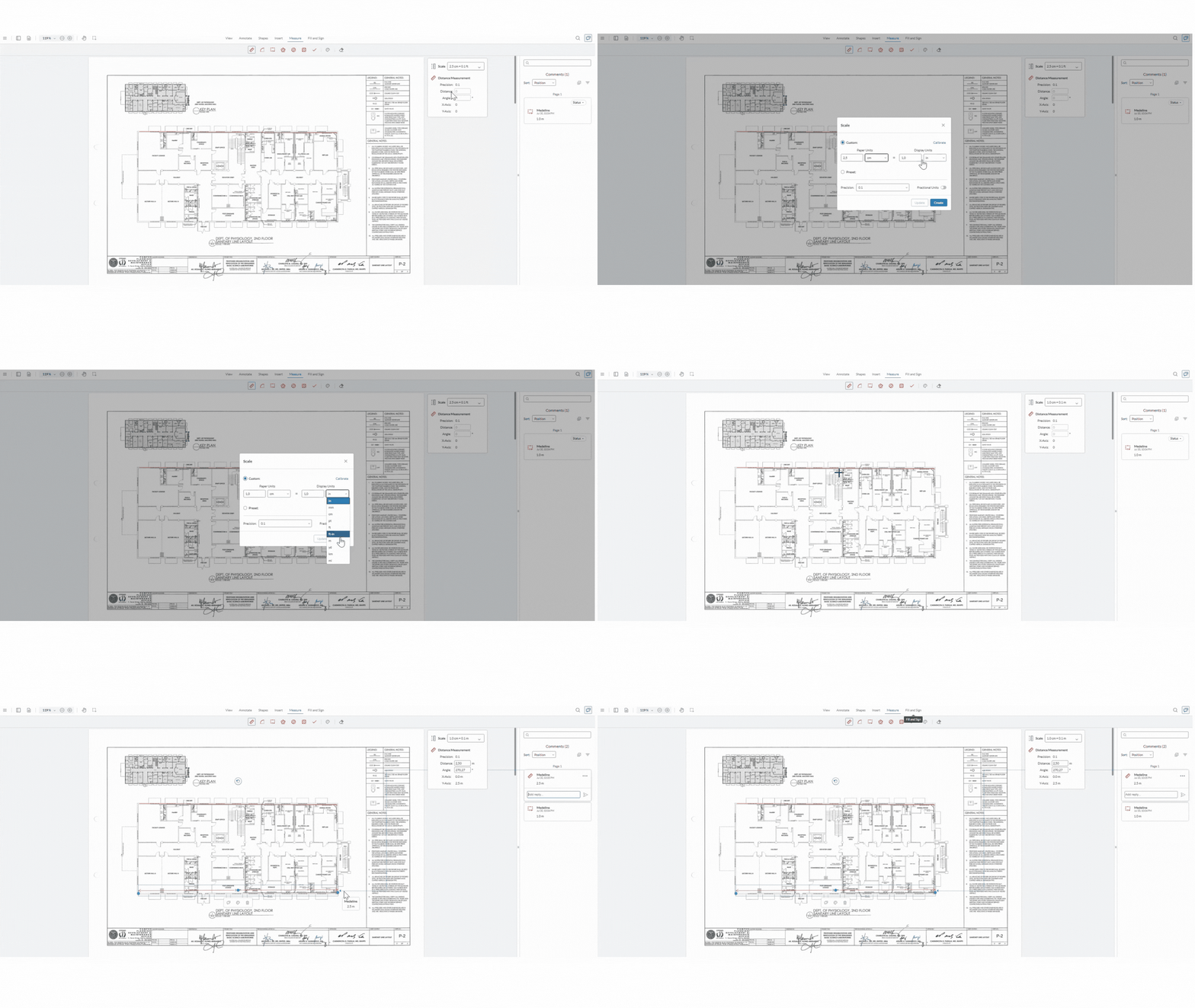
1. Open Your Drawing & Set Scale
Open any PDF drawing or blueprint in zipBoard. You can use preset scales or create your custom scale by adjusting your paper unit and display unit. You can calibrate your document scale in two clicks by matching a known dimension line
2. Select Your Measurement Type
Select your preferred measurement tool:
Distance
Best for calculating the straight-line span or total travel length between two specific points.
Arc Measurement
Best for determining the curved length of a circle segment or rounded path.
Perimeter
Best for finding the total continuous boundary length around a closed 2D shape with irregular shape.
Area
Best for measuring the total two-dimensional surface space enclosed within a boundary.
Ellipse Area
Best for calculating the surface coverage of oval or stretched circular shapes.
Rectangle Area
Best for determining the surface space of square or rectangular spaces like rooms, plots, or displays.
Count Measurement
Best for tallying the total quantity of distinct individual items within an area.
3. Draw & Collaborate
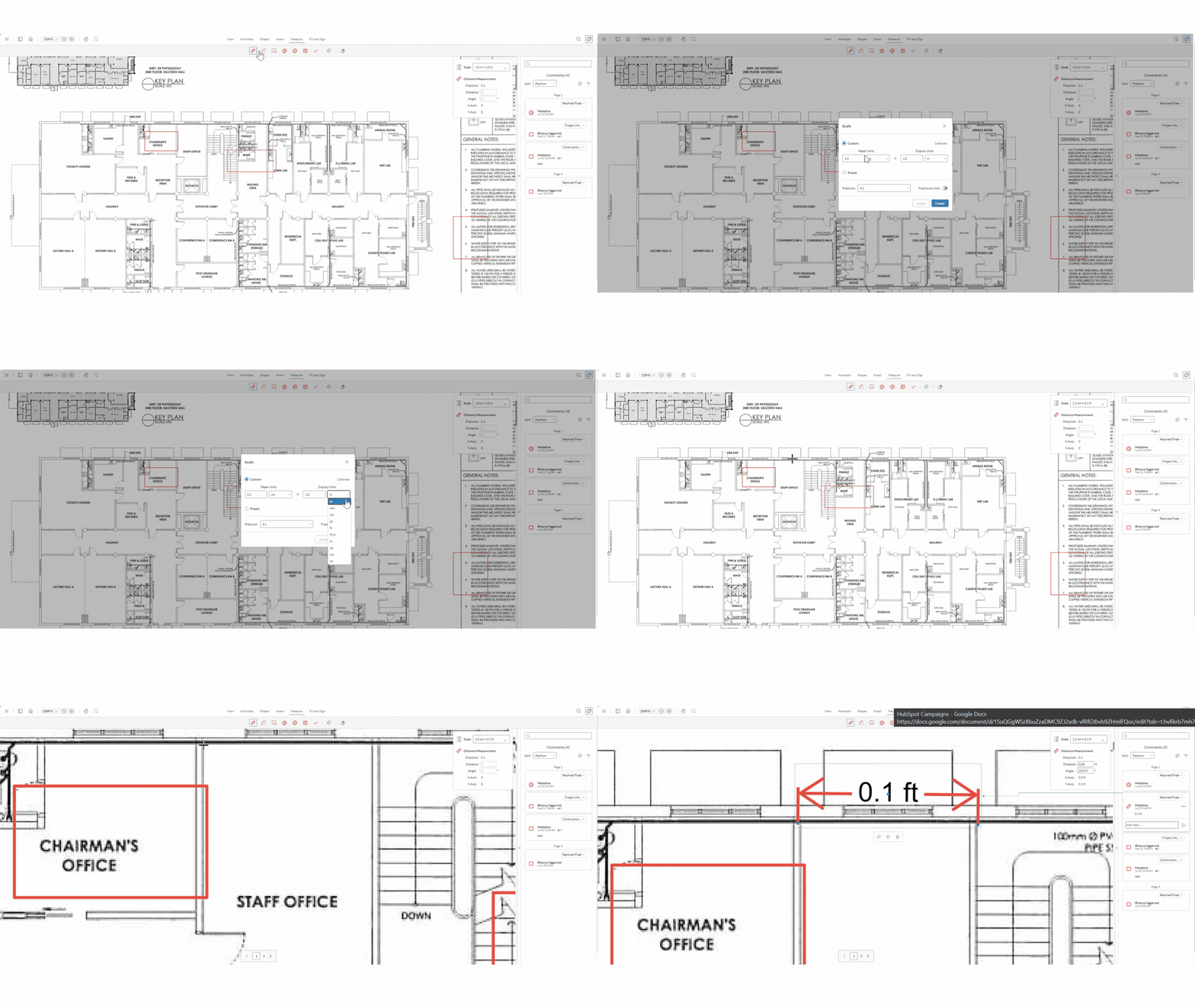
Click and drag across the drawing surface. The exact calculated value instantly displays on the PDF face and creates a clean record for team discussion with replies option.
Transform Your Construction Drawing Review
Try a 14-day free trial or book a quick 15-minute walkthrough call with us.
Measurements vs Tasks
The biggest headache with legacy markup tools is cluttered task list. In zipBoard, we made a deliberate design choice: Measurements are informational references, not actionable tasks.
| Feature | Measurement Annotation | Actionable Task |
|---|---|---|
| Main Purpose | Displays spatial reference values | Tracks punch items & design revisions |
| Appears in the Task Board? | No (Keeps task list clean) | Yes (Appears in master list) |
| Assignee & Due Date? | No | Yes |
| Threaded Replies? | Yes | Yes |
By keeping measurements in the Comments panel as lightweight annotations, reviewers can perform dozens of routine dimensional checks without cluttering the master project task list or sending false alarms to consultants.
Always Verify the Calibration
Measurement accuracy depends on correct scale calibration — always verify calibration against a known dimension before relying on a measurement for critical decisions
Frequently Asked Questions
Upload your PDF drawing to zipBoard, select the Measure tool from the markup toolbar, and calibrate the scale against a known dimension. You can then measure linear distances, areas, angles, and perimeters directly on the drawing in your web browser.
No. Measurement markups are created as lightweight Measurement Annotations. They appear in the Comments panel so team members can discuss dimensions, but they do not populate on the Task List or require assignees and due dates.
Yes! Every measurement annotation includes an optional threaded reply box. Stakeholders can ask questions, clarify tolerances, or confirm clearance requirements directly on the measurement thread without turning it into a formal task.
Try zipBoard today
Try a 14-day free trial or book a quick 15-minute walkthrough call with us.



Recent Posts
- Adobe Shared Review Not Working in Edge or After an Update? What Breaks and How to Fix It October 26, 2026
- How to Review AI-Generated eLearning Courses (and Get Them Approved Faster) October 22, 2026
- 7 Best Fieldwire Alternatives for Construction Teams September 29, 2026
- How to Track Content Approvals Across Multiple Projects (Without Missing One) September 25, 2026
- How to Compare Two PDF Versions Without Losing Track of Changes September 1, 2026
Features
Compare
©️ Copyright 2026 zipBoard Tech. All rights reserved.