24 Nov
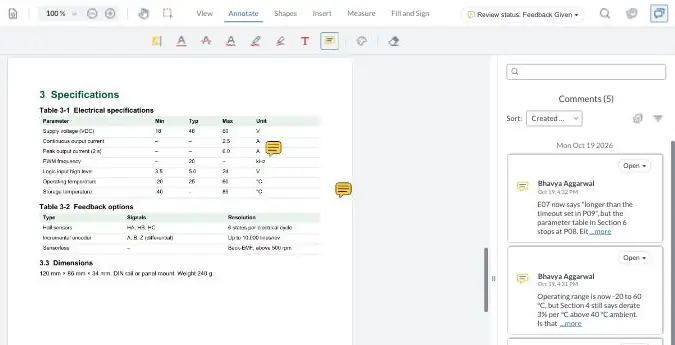
Short answer. Don’t move a review mid-round. List your live reviews, finish open rounds in Acrobat, set up roles and one project structure in zipBoard, decide whether files upload or stay on your server, and run one document through a full round as a pilot. Most teams keep Acrobat for editing; only the review moves. Plan on a week for setup and one review cycle for the pilot.
Nothing moves mid-round.
About a week to set up, one review cycle to run.
Once the next 2–3 documents have run.
The move at a glance.
Why are teams moving reviews out of Acrobat now?
Adobe calls the server-based shared review its legacy sharing experience and “not the recommended review method”, and current Acrobat shares for review through Adobe’s cloud unless you switch that off (Adobe Help). The cloud link asks every reviewer to sign in unless it’s public (Adobe Help). Teams whose files can’t go to Adobe’s cloud, or whose reviewers sit outside the company, are left maintaining the legacy review. For your options side by side, see Leaving Adobe shared review.
Adobe calls server-based shared review its legacy sharing experience, “not the recommended review method”.
Current Acrobat shares for review through Adobe’s cloud unless you switch it off.
The cloud link asks every reviewer to sign in, unless the link is public.
Source: Adobe Help pages linked above.
Step 1: What should you list before you move?
One row per review workflow (a manual, a datasheet set, a spec):
- the documents and how often they’re revised,
- who starts the review and who must sign off,
- reviewers by type: internal, SMEs in other teams, outside partners or customers,
- where the PDFs live today (network folder, SharePoint library, WebDAV, document management system),
- what you hand over at the end (annotated PDF, comment log, sign-off record).
Illustration. One row per review workflow (manuals, datasheets, drawing sets, submittals): documents, who signs off, where the PDFs live.
Step 2: What stays in Acrobat?
Editing, creating, converting and signing PDFs stay in Acrobat. Reviews currently open stay in Acrobat until the round closes; export the comments for your records as you do today. New rounds start in zipBoard.
- Editing and creating PDFs
- Converting and signing
- Review rounds already open
- Every new review round
- Required sign-off on each version
- Comments as tasks with owners
- Who’s late, and who has approved
Step 3: How do you set up roles and a project structure?
Set up once, reuse for every document:
- Roles: Super Admin (members, billing), Admin (workflows), Managers (run projects), Collaborators (the doc team), Reviewers (SMEs and outside reviewers). Reviewers and collaborators are unlimited on every plan.
- Project structure: the boards and statuses your documents move through (draft, SME review, final sign-off). On Enterprise, export it as a project template so each new manual starts the same way. Templates hold the structure only, so add reviewers and due dates on each file.
- SSO: on Enterprise, sign-in can go through your identity provider (Microsoft, Google, Okta); zipBoard sets it up with your IT team (security).
Illustration. Reviewers and collaborators are unlimited on every plan.
Step 4: Should PDFs upload or stay on your servers?
- Upload if the review copy can sit in zipBoard (hosted on AWS).
- Add by URL if the file must stay in your repository: your system sends zipBoard the PDF’s URL through the API, and reviewers still get full markup and sign-off (help 662).
- Region-specific or private hosting is available on Enterprise if your policy needs it.
Hosted on AWS. The simplest route for most teams.
Your system sends zipBoard the PDF’s URL through the API; reviewers still mark it up and sign off.
Region-specific or private hosting is available on Enterprise.
Step 5: How do you invite reviewers?
- People who review often: add them as Reviewers; the file appears in their Needs my review list.
- Occasional or outside reviewers: send a share link. They comment in the browser as guests; you can require sign-in, add a password and set an expiry date.
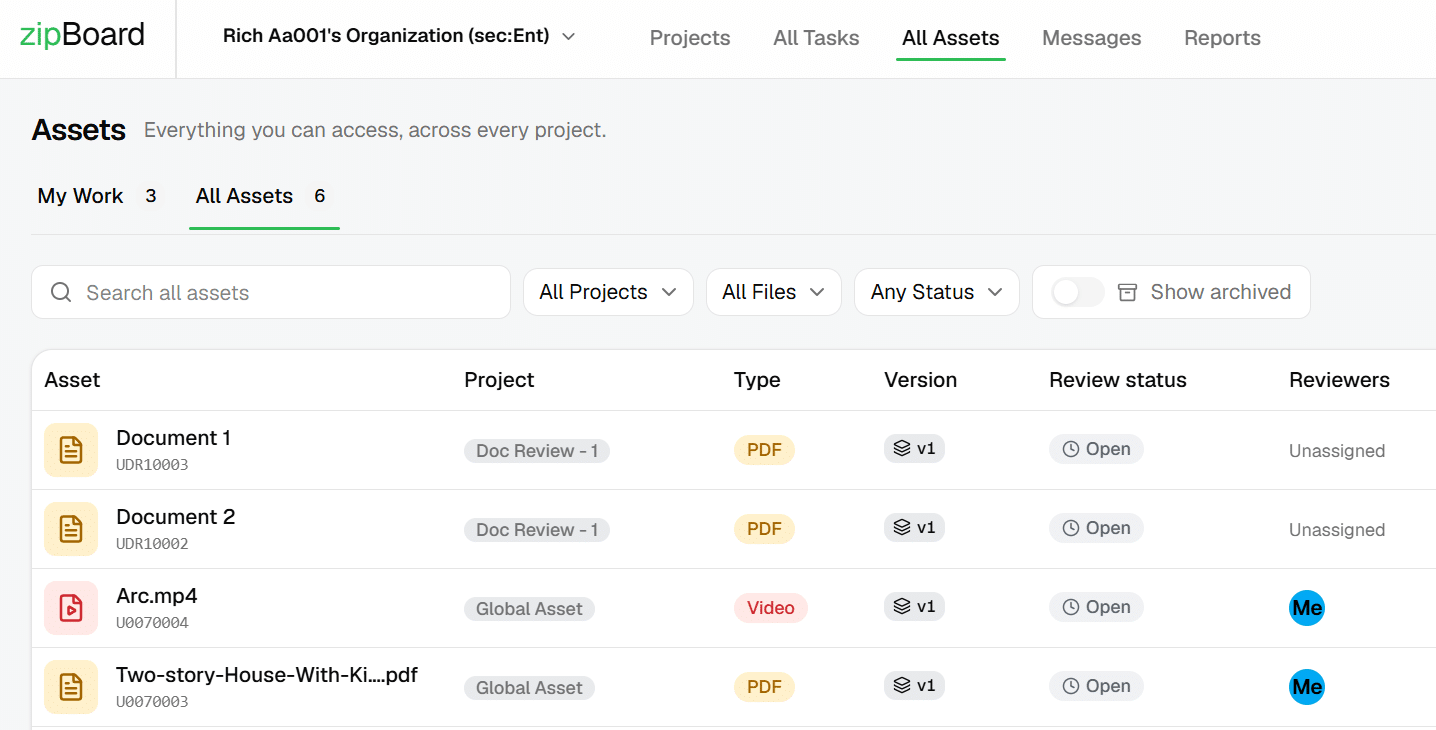
Real product screenshot: All Assets lists every file across projects with its version, review status and reviewers.
Illustration. Outside reviewers comment as guests; you choose the controls.
Step 6: How do you run the pilot round?
Pick one document with a real deadline and three to eight reviewers, including at least one outside reviewer. Run the whole round in zipBoard: comments, replies, comments turned into tasks, each reviewer’s decision, then the next version uploaded and compared side by side. At the end, export the comments to CSV or download the annotated PDF and check it against what you hand over today.
Illustration. Each required reviewer records a decision on the version.
Illustration. Email wording is an example.

Real product screenshot. Sign-offs reset on the new version, so a yes on Rev B never counts for Rev C.
Step 7: When can you retire the review server?
When the pilot’s handover passes and the next two or three documents have run in zipBoard. Then stop creating new shared reviews in Acrobat, keep the old review folder read-only for your records, and tell IT the review library can be archived.
Migration checklist
| # | Task | Owner | Done |
|---|---|---|---|
| 1 | List live review workflows (documents, reviewers, file location, handover) | Doc lead | ☐ |
| 2 | Note which rounds are open in Acrobat and when they close | Doc lead | ☐ |
| 3 | Invite the doc team; set Admins and Managers | Admin | ☐ |
| 4 | Set up one project’s boards and statuses (export as a template on Enterprise) | Admin | ☐ |
| 5 | Decide upload vs add by URL; set up the API call if by URL | Admin + IT | ☐ |
| 6 | SSO (Enterprise) | IT | ☐ |
| 7 | Pilot one document through a full round | Doc lead | ☐ |
| 8 | Compare the export with today’s handover | Doc lead + QA | ☐ |
| 9 | Run the next 2–3 documents in zipBoard | Team | ☐ |
| 10 | Archive the old review folder or SharePoint library | IT | ☐ |
Want help? We set up roles, SSO and the first projects with your admin and run a 30-day pilot on one live workflow with you. Book a migration call · Start free trial
Reviewers cost nothing.
Every plan includes unlimited reviewers and collaborators, and guests comment from a share link without an account. Add every SME and partner the pilot needs.
Plan prices are for zipBoard review and approval. Orbit AI features (Orbit Check, Orbit Verify) are not included in these prices.
Orbit Check runs your own checklist on a document before reviewers see it. Your team accepts or rejects each finding; accepted ones become tasks. On paid plans, free until 15 January 2027. An admin turns it on.
Orbit Verify checks each comment from the last round against the new version and gives it a verdict, from Resolved to Unresolved.
When not to move
- Your shared review is stable and every reviewer is on your network.
- You need a 21 CFR Part 11 electronic signature: zipBoard records who reviewed and decided what, but it is not a Part 11 e-signature.
- Your CCMS already handles review and every SME has a seat.
Frequently asked questions
- How long does it take to move from Acrobat shared review? Plan about a week for setup and one review cycle for the pilot.
- Do we lose the comments in our existing PDFs? No. They stay in those PDFs. Close open rounds in Acrobat and start the next round in zipBoard.
- Do our SMEs need training? No. They open a link and comment in the browser.
- Can the PDFs stay on our document server? Yes, add them by URL through the API so the file stays where it is.
- Can we keep Acrobat? Yes. Keep it for editing; move the review.