Review every course, not just the ones built in Articulate
Review 360 works well until a course comes from somewhere else: an AI builder, a vendor’s SCORM package or your own HTML5. zipBoard reviews the exported course from any tool, names who must sign off, and turns every SME comment into a tracked fix.
No credit card needed. Reviewers are always free.
What’s a good alternative to Articulate Review 360?
If every course is built in Articulate 360, Review 360 is usually enough, and it comes with your subscription. Teams look for an alternative when part of the work happens outside Articulate, or when they need more than a comment list: a named sign-off from each SME and a record of which fixes landed. zipBoard is built for that part of the job.
Why do teams outgrow Review 360?
The questions we hear from L&D teams when their course pipeline changes.
An AI builder, a vendor’s package or an in-house HTML5 template can’t be published to Review 360. zipBoard reviews the exported course from any tool.
In zipBoard every comment is already a task with an assignee, priority and status, so the tracker is the review.
Required reviewers get the course in their own Needs my review list and finish with Approved or Changes Requested.
Upload the next version on the same course and open the two versions side by side.
They open one link in the browser and comment on the screen they’re reading. No LMS login and no Articulate licence.
My Work and Global Asset View show every course waiting for review, across projects, by status and due date.
Where does zipBoard fit with your LMS?
Keep your LMS. zipBoard is the review step before content goes in, for every check your course goes through.
Most LMSs give course authors access, not reviewers. In zipBoard, SMEs review the storyboard PDF, an HTML prototype by its URL, or the exported course, from one link.
Fact-checking, academic review, accessibility, functionality and copy editing land on the same course as tagged comments, with the people who must sign off named on it.
Global Asset View and My Work show every course waiting for review, who it’s waiting on, and the due date.
Try it: review a sample course
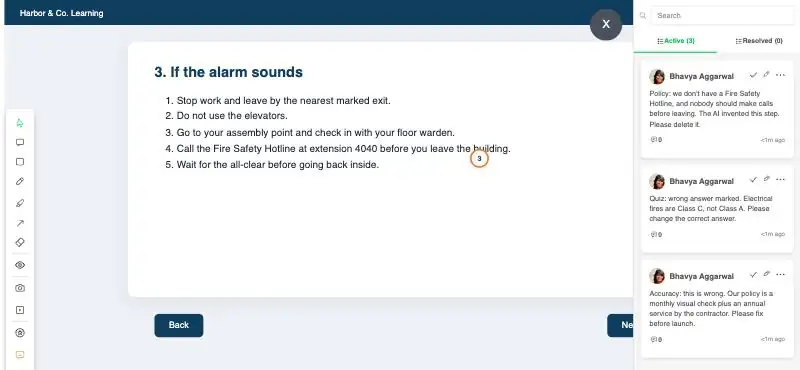
Open a short AI-drafted safety course the way your SMEs would. Three review comments are already pinned: an out-of-date figure, a wrong quiz answer and a made-up step. Add your own; your demo comments are private to this visit.
Opens in a new tab. No sign-up needed.

How does zipBoard compare with Articulate Review 360?
Both put feedback on the course instead of in email. The differences are in what you can review, how sign-off works and how fixes are tracked.
| What teams decide on | zipBoard | Articulate Review 360 |
|---|---|---|
| Built for | L&D teams and agencies reviewing courses from any tool, plus the PDFs, videos and web pages around them | Teams that author in Articulate 360 |
| What you can review | SCORM and HTML packages from any authoring tool or AI builder, hosted course URLs, video, PDFs, images and web pages (supported tools) | Content published from Articulate 360 apps (Storyline, Rise, Presenter, Quizmaker, Engage, Replay, Peek), manually uploaded Storyline 360 courses, and videos |
| Who needs a paid seat | Team members who manage projects. Reviewers and collaborators are unlimited on every plan (see plans) | Included in Articulate 360 plans, sold per seat per year. Anyone can open a review in the browser without Articulate 360 |
| Outside reviewers | Share link; guests add their name and email. Password, sign-in or expiry optional | Share link; the owner can allow comments without an Articulate ID (reviewers enter an email). Private links need an Articulate ID. Optional password |
| Asking for a review | Add required reviewers and a due date; the course lands in their Needs my review list and they get an email | Request Review: assigned reviewers, a due date, and reminder emails the day before, on and after it |
| Sign-off | Each reviewer marks Approved or Changes Requested; you’re emailed when a status changes | Reviewers click Finish Review and their status becomes Review Complete |
| Versions | New version on the same course; compare two versions side by side; approvals reset for the new version | New versions keep the same link; unresolved comments stay visible; reviewers comment on the latest version |
| Tracking fixes | Every comment is a task with assignee, priority and status, in a table or on a Kanban board | Threaded comments that the team resolves; export all comments as CSV or PDF |
| Many courses at once | My Work and Global Asset View across projects, filtered by status and due date | Folders, shared with internal and external teams |
| Connects to | Jira, Slack, Microsoft Teams and an API | Built into Articulate 360 authoring; works with Articulate Localization |
Review 360 sources, opened 28 Oct 2026: Publish content to Review 360 (updated 23 Oct 2026) · Request Review · How content owners manage Review 360 items · Your most asked Review 360 questions · Articulate Review · Articulate 360 pricing. zipBoard: review SCORM without an LMS, required reviewers, compare course versions, share links. Products change; check each vendor’s page before you decide.
How does a course review run in zipBoard?
Five steps from a published draft to a signed-off course.
Upload the course and name who must sign off
- Publish from your authoring tool as SCORM or HTML and upload the ZIP, or add the course URL. No LMS needed.
- Add the SMEs who must approve as reviewers and set a due date. Everyone else gets a share link.
SMEs comment on the screen, and comments become fixes
- Each comment is pinned to the place in the course where it was made.
- Comments become tasks with an owner, priority and status, on a board or in a table.
- Tag them (content, quiz, media, accessibility) so the developer knows what to fix first.
Upload the fix, compare versions, get the yes
- Publish again and upload it as a new version of the same course.
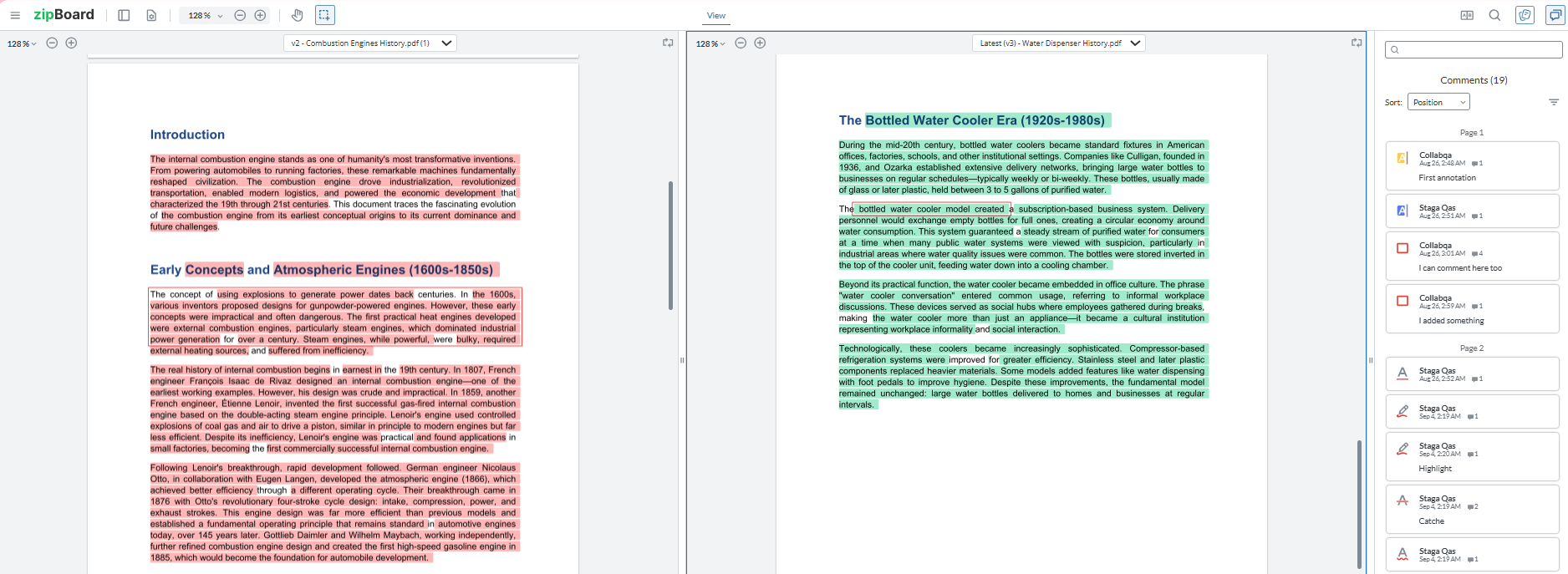
- Reviewers open the two versions side by side to check what was addressed.
- Approvals reset, so every version gets its own sign-off.
What does a course review really cost?
The tool is the small part. The cost is in the rounds.
Two review processes
Articulate courses go to Review 360; everything else goes round by email and screenshots. Two places to check, two ways to lose a comment.
The spreadsheet in between
Exporting comments to CSV and copying them into a tracker is an hour per round that nobody budgets for.
Extra rounds
A fix that didn’t land sends the course round again. Side-by-side versions catch it in the same round.
Waiting on sign-off
“Finished” isn’t “approved”. A recorded Approved or Changes Requested from each SME ends the round.
What zipBoard adds
- Courses from any tool, plus the PDFs, storyboards, videos and web pages around them, in one review.
- Required reviewers with Approved / Changes Requested decisions and a Needs my review list for each SME.
- Comments as tasks with owners, priority and status; Kanban and table views.
- Side-by-side compare of two course versions.
- My Work and Global Asset View across all your courses.
- Jira, Slack and Microsoft Teams integrations, and an API.
- Unlimited reviewers and collaborators on every plan.
What Review 360 does that zipBoard doesn’t
- One-click publishing from Storyline and Rise, with no export or upload step.
- A new version keeps the same review link, so reviewers never need a new URL.
- Automatic reminder emails the day before, on and after the due date.
- Comments flow back into Articulate’s authoring workflow, and it works with Articulate Localization for translation checks.
- It’s already included in your Articulate 360 subscription.
When should you stay with Review 360?
Everything is built in Articulate 360
If every course comes out of Storyline or Rise and reviewers are happy there, Review 360 is the shorter path.
“Review Complete” is enough sign-off
If you don’t need each SME’s decision on record, or a task list per comment, you don’t need another tool.
You rely on live annotation in Storyline 360
zipBoard reviews Storyline output, but live annotation isn’t supported on Storyline 360 courses, and SCORM from Adapt, Elucidate or Lectora isn’t supported (details).
You’re mid-round
Finish open rounds where they are. Start the next course in zipBoard rather than moving one halfway through.
Many teams use both: Review 360 for quick internal drafts, and zipBoard for SME and client sign-off and for every course that isn’t built in Articulate. More on Articulate 360.
AI first pass on course content
We’re piloting AI-assisted quality review of course content with a small group of teams. SMEs stay in charge: a person accepts or rejects every finding.
Reviewing AI-built courses today?
Read how to review AI-generated eLearning courses: what SMEs should check, and how to get them approved faster.
Articulate Review 360 vs zipBoard: common questions
What’s a good alternative to Articulate Review 360?
If you build everything in Articulate 360, Review 360 is often enough. If your courses also come from AI builders, other authoring tools or custom HTML5, or you need a recorded sign-off from each SME and comments tracked as tasks, a dedicated review tool such as zipBoard fits better.
Can Review 360 review SCORM packages from other tools?
Articulate’s support article lists content published from Articulate 360 apps, manually uploaded Storyline 360 courses and videos as what you can send to Review 360. zipBoard reviews SCORM and HTML packages from any authoring tool, including AI builders, and hosted course URLs.
Do reviewers need an Articulate ID or a zipBoard account?
Neither, by default. Review 360 owners can allow comments without an Articulate ID (reviewers enter an email); private links need one. In zipBoard, reviewers open a share link and add their name and email, and you choose whether the link needs a password, a sign-in or an expiry date.
Can I use zipBoard and Review 360 together?
Yes. Publish your Storyline or Rise course as SCORM or HTML and upload it to zipBoard for SME and client sign-off, while Review 360 stays in use for internal drafts. How to review a Rise course in zipBoard
How do I see which SMEs have approved a course?
Add them as required reviewers with a due date. Each one marks the course Approved or Changes Requested, you’re emailed when a status changes, and the course sits in their Needs my review list until they finish.
What happens to comments and approvals when I upload a new version?
The new version goes on the same course. Approvals reset so each version gets its own yes, and reviewers can compare the two versions side by side to check what was fixed.
Can I bring my Review 360 comments into zipBoard?
There’s no import. Finish open rounds in Review 360, export the comments as CSV or PDF for your records, and start the next round in zipBoard.
Does zipBoard replace our LMS?
No. Your LMS delivers the course and tracks completions and scores. zipBoard is the review step before that: SMEs, editors and stakeholders comment on the course and sign off, and then you publish to whichever LMS you use. Reviewers don’t need course-author access in the LMS.
Can SMEs review a course before it’s built?
Yes. Upload the storyboard or design document as a PDF, share an HTML prototype by its URL, or upload an early SCORM or HTML export, and SMEs comment on each from the same link.
Do we pay for every reviewer?
No. Reviewers and collaborators are unlimited on every zipBoard plan. See plans
Can we review a course without uploading it to an LMS?
Yes. Upload the SCORM or HTML ZIP to zipBoard, or add the course URL, and review it in the browser. An LMS sandbox is still the right place to test tracking data. Review a SCORM course without an LMS
Get your next course signed off
Upload one course, add the SMEs who must approve, and send the link.
No credit card needed. Reviewers are always free.